
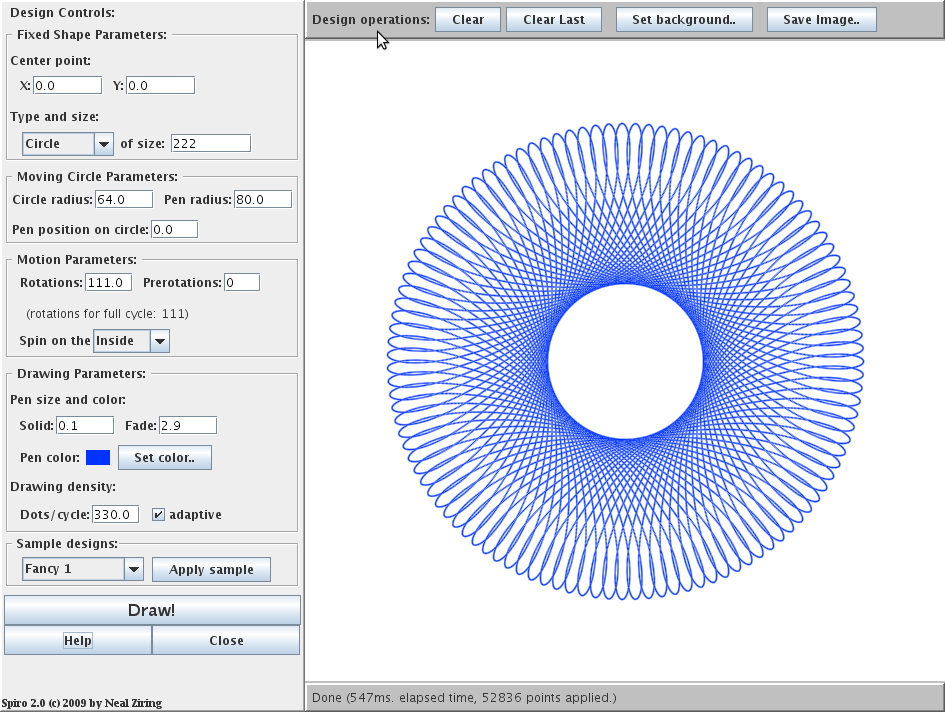
This page describes how to use the Spiro applet, version 2.0, a Java application for making handsome drawings based on hypotrochoids and epitrochoids. The drawings that you can make with Spiro are similar to those made with Kenner's Spirographtm toy (c. 1966). (Note: "Spirograph" is a registered trademark of Hasbro, Inc.)
Contents
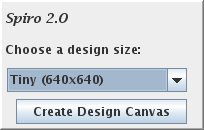
To create any drawings, you need a design canvas. The initial control panel is shown above. To make a new design canvas, select a size and then click on "Create Design Canvas". You can create a canvas larger than your screen, but you won't be able to see all it at one time. Also, note that you cannot change the size of a design canvas.
Canvases come in seven different sizes; a bigger canvas will let you see more detail, but on a slow computer the larger sizes will take noticably more time to complete. If you don't know which size to use, start with Medium.
To use the Spiro controls effectively, you need to know a little terminology. A spirograph drawing is made by rolling a circle (the "moving shape" or "mobile") on its rim around a fixed shape (also called the "stabile"). A pen is attached to the moving circle, and the line (dots of ink) drawn by the pen as the circle rolls along is the drawing. Spiro allows you to control how many times the circle rotates, and whether it rolls along the inside of the stabile or along the outside. You can also control the color and thickness of the pen, the color of the paper, and other parameters.
When you are typing values into any of the fields in the Spiro control panel, the value will turn red if what you have typed isn't valid. You cannot render a drawing if any of the values aren't valid.
To create a simple drawing, just click on the "Draw!" button.
Before you can make any drawings, you have to get familiar with the Spiro design canvas window and its parts. A Spiro design window consists of four parts:
Each of the areas is described in the sections below.
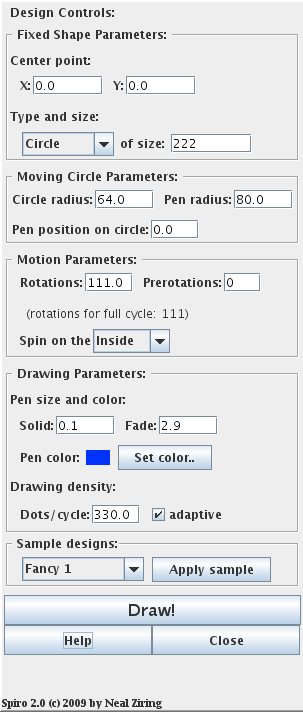
The control panel consists of six areas, as shown in the picture below.
 |
|
When creating a design, it is usually best to work down the control panel from top to bottom. Set the type and size of the fixed shape first. Spiro 2.0 supports the following fixed shape types:
Next, set the size of the moving circle, and the position of the pen on the circle. In a physical spirograph set, the pen radius was constrained to be less than the moving circle radius. Spiro allows the pen to 'float' outside the moving circle.
The size of the fixed shape and the moving shape determine how many rotations the moving shape will have to perform in order to return the pen to its exact starting point. Use the Motion Parameters section to control how many rotations of the moving circle Spiro will draw. You can also cause the moving circle to perform some prerotations, in order to pre-position it. This is useful if you want to use several colors to draw along the same path.
Next, set the pen color and size. To use the equivalent of a ballpoint pen, choose Solid=1.0 and Fade=1.5. To use something more like a fat marker, try Solid=1.5 and Fade=7. To set the color, click on the "Set Color" button. A simple color chooser dialog will pop up; click on the color you want and then click on the dialog's "Okay" button.
Finally, click on "Draw!" to render the design.
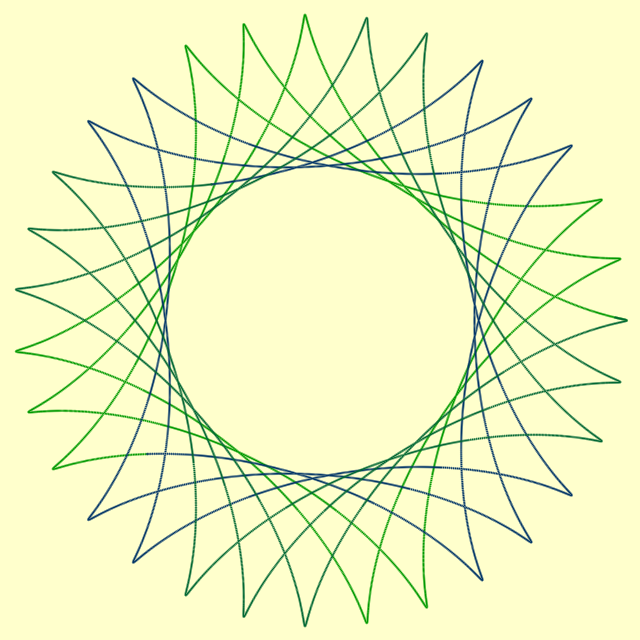
The example image below was created using a circle fixed shape of size 310, and a moving circle size of 80 (pen radius 76) rotating on the inside. It is actually a composite of three designs, using the Prerotate parameter to draw parts of the overall figure in green, greenish-blue, and bluish-green.
Along the top of your Spiro design window is the design operations panel. It allows you to control the drawings in the canvas, set the canvas background color, and to save the canvas image. The design operations panel is shown below:

Spiro allows you to create one drawing after another, adding each of them to the same canvas. The leftmost button, "Clear", simply deletes all the drawings you've made, leaving the canvas blank. Be careful - once the drawings are gone, they're gone! The second button, "Clear Last", merely deletes the most recent drawing you've added, without affecting prior ones. This feature is very useful when you're making a complicated picture and decide you don't like the latest addition; you can use "Clear Last" several times to delete backward through a sequence of drawings.
You can change the color of the canvas background at any time. Simply click on the third button, "Set background..", and pick a color from the pop-up color chooser dialog.
To save a drawing that you like, simply click on the design operation button labeled "Save Image..". This button can have one of two behaviors.
Spirograph at Wikipedia
Information about the original Kenner toy and its properties,
at Wikipedia.
Spirograph Applet
An older spirograph applet written for Java 1.0. This one
is much faster than Spiro, but is less flexible and accurate.
No way to save, though.
Java Spirograph
This modest applet creates a subset of the kinds of spirographs that
Spiro does, but does so more quickly. Unfortunately, this one
offers no save facility, either. Another page on the same
site includes a doubly nested
extension that the author calls a
Trirograph
- very cool.
Animated Spirographs (Applet)
A small Java AWT component that draws randomly-changing animated spirographs
(straight lines only). Compact, fast, cute, and the author gives out the
source code!
Analysis of Spirograph
A short mathematical analysis of the relative sizes of the wheels
in Kenner's original Spirograph set.
The Geometer's Sketchpad
GSP is a sophisticated tool for creating 2D and 3D geometric drawings and animations
of all sorts, including a much larger class of spirograph-like figures than the
Spiro Applet can make. There is also a Java version.
(Note: GSP cannot make ellipse-shaped hypotrochoids, but Spiro can!)
Roulettes (Spirograph Curves) at UMN
A mathematics treatise on spirograph-like curves inside and outside circles; part
of the on-line CRC shapes and formulas excerpts at U of Minnesota's Geometry Center.
Spirograph at Wolfram's World of Mathematics
A very nice mathematical treatment of hypotrochoid curves, with equations
and diagrams.
The Incredible Elliptical Spirograph Generator
Javascript implementation that generates circular and elliptical spirographs
with adjustable colors. Very effective.
This applet and accompanying back-end web system were written by Neal Ziring, this document last modified 2/24/11.